Using the Dashboard
Using the Dashboard
Section titled “Using the Dashboard”All Nyan Streaming operations are performed from the web dashboard. Issuing stream keys, checking viewing URLs, managing recordings and media, analytics, notifications, and team (organization) management are all handled here.
Dashboard: https://nyst.live/
Screen Layout (Sidebar)
Section titled “Screen Layout (Sidebar)”Use the left sidebar of the dashboard to navigate to each feature.
| Menu | Contents |
|---|---|
| Dashboard | An overview of status, viewer counts, storage, and more |
| Stream Keys | Issue and manage stream keys, and check viewing URLs |
| Archive | Manage and download stream recording files |
| Media | Upload and deliver videos, images, and files |
| Analytics | Real-time / time-series statistics such as viewer counts and bitrate |
| Activity | An audit log of logins, key operations, and more |
| Server Status | The online status of each delivery server (node) |
| Music Usage Application | Report usage of music managed by JASRAC / NexTone |
| Team Members | Invite members and manage roles |
| Settings | Organization info, billing, notifications, security, API keys, and program output |
Dashboard (Top)
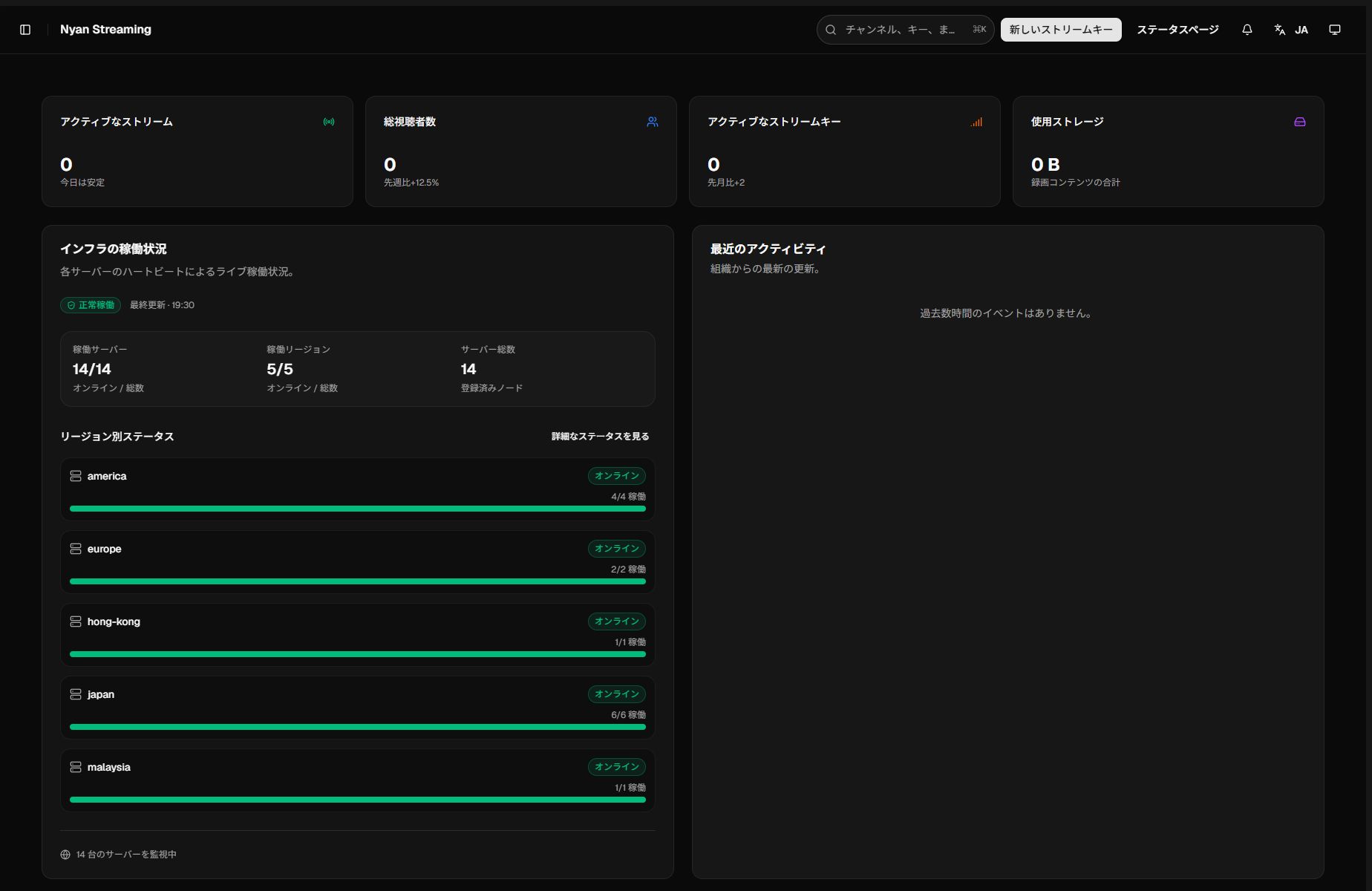
Section titled “Dashboard (Top)”Get an at-a-glance overview of the entire organization.
- Metrics such as active stream keys / active streams / total viewers / average concurrent viewers / storage used
- Graphs of viewer counts and bitrate
- Recent activity
Stream Keys
Section titled “Stream Keys”Manage the credentials (stream keys) used for streaming.
List and Create
Section titled “List and Create”- Create a key from New Key. When creating one, set a “description (name)” and “plan,” and optionally specify a “view key,” “node,” “region,” and “notes.”
- The view key is a custom key used in the viewing URL (randomly generated if left blank). Allowed characters are alphanumerics, hyphens (-), and underscores (_). The ingest secret is always randomly generated.
- In the list, you can rename, change the plan (upgrade), regenerate, and delete keys. You can also select multiple keys and delete them in bulk.
Checking the Delivery Server and Address
Section titled “Checking the Delivery Server and Address”In the key details (Overview tab / details dialog), selecting a node or region displays the streaming (ingest) address and viewing address that correspond to that server.
- Streaming / ingest URLs: RTMP URL (standard, OBS), WebRTC (WHIP) URL (lowest latency), RTSP ingest URL, ingest path
- Viewing URLs: HLS viewing URL, RTSP / RTSPT (TCP) URL, RTMP viewing URL, playback URL
- Supported codecs: Video = H.264, Audio = AAC / LPCM (RTSP: pcm_s16be, RTMP: pcm_s16le)
- Details: Plan, maximum concurrent viewers (organization total), maximum input bitrate (organization total), recording/restreaming enabled or disabled, storage allocation, regional restrictions, and more
Changing the Delivery Node / Region
Section titled “Changing the Delivery Node / Region”Even after creation, you can later change the node or region used for streaming (left unselected, it is chosen automatically). Saving may change the viewing/streaming addresses.
Publish Token
Section titled “Publish Token”Issue a short-lived JWT and paste it into the Bearer token field of OBS or similar to stream. Specify a validity period (in minutes) when issuing it. RTMP, SRT, and WebRTC all send this token as the password (or as Authorization: Bearer).
Stream Key Detail Tabs
Section titled “Stream Key Detail Tabs”When you open a key, you can perform each operation from the following tabs.
| Tab | Contents |
|---|---|
| Overview | Check streaming/viewing URLs and details |
| Browser Streaming | Stream your camera/screen directly from the browser via WebRTC (WHIP) |
| Browser Viewing | Watch with low latency from a node via WebRTC (WHEP) |
| HLS Viewing | Play HLS (.m3u8) in the browser (hls.js on Chrome/Firefox, native on Safari) |
| Statistics | Live statistics for this key, and per-node live statistics |
| Recordings | The recording list for this key, and enabling/disabling recording |
| Restreaming | Configure simultaneous forwarding to external RTMP destinations |
| Equalizer | Adjust the equalizer for the stream audio |
Enabling/Disabling Recording (Archive)
Section titled “Enabling/Disabling Recording (Archive)”From the “Recordings” tab, you can toggle automatic recording for this key on or off (availability depends on your plan).
Restreaming (Relay)
Section titled “Restreaming (Relay)”You can simultaneously forward a received stream to external RTMP destinations such as YouTube and Twitch (Standard / Pro plan or higher).
- From “Add Destination,” set a name, protocol (RTMP), and delivery URL.
- You can enable or disable each destination individually. The maximum number of destinations you can register depends on your plan.
Audio Equalizer
Section titled “Audio Equalizer”For each stream key, you can apply an equalizer to the stream audio on the server side. You can adjust presets (Flat / Voice / Music / Bass Boost / Treble Boost) and the preamp, and changes are reflected to all viewers within about 3 seconds.
Suspended (Blocked) Display
Section titled “Suspended (Blocked) Display”If a limit is exceeded or the terms are violated, the key is shown as suspended.
- Exceeding the input bitrate limit / exceeding 24 hours of continuous streaming: Automatically lifted after a certain period (the scheduled release time is displayed).
- Terms of service violation: To have it lifted, contact us at https://krnk.org/contact/.
Archive (Recordings)
Section titled “Archive (Recordings)”Manage stream recording files (availability depends on your plan).
- You can play, watch in a separate tab, download, and delete recordings.
- The organization-wide storage usage (usage rate / remaining) is shown at the top.
Upload and deliver videos, images, and files. Everything is delivered as-is via the CDN.
- Upload by clicking or dragging and dropping (up to 1 GB per file).
- Uploaded media can be played, renamed, and deleted.
- Only alphanumerics, hyphens (-), and underscores (_) can be used in file names. Renaming a file also changes its URL, so previously shared URLs become invalid.
Analytics
Section titled “Analytics”Check engagement and streaming performance.
- Viewers: Real-time trends in live viewer counts and bitrate
- By Hour: Time-series statistics
- Performance: Ingest/egress bitrate, protocol mix, and per-stream-key live statistics
- Authentication Log: A log of viewing/streaming authentication results
Activity
Section titled “Activity”Check audit logs for logins, stream key operations, plan changes, team changes, and more. Search, export, and deletion are supported.
Server Status
Section titled “Server Status”Displays the online status of each delivery server (node), grouped by region (a live view based on heartbeats).
Music Usage Application
Section titled “Music Usage Application”A reporting form for when you use music managed by JASRAC / NexTone in your stream (Standard plan or higher).
- Search JASRAC from a list; for NexTone, look up the work code on the official page and enter it manually.
- Add the music you want to report to the list, enter the usage date and other details, and submit. You can also review your past application history.
Team Members
Section titled “Team Members”Manage your organization’s members.
- Invite members (send an invitation by email), resend invitation emails, and remove members
- Roles: Owner (full access, including billing, ownership transfer, and organization deletion), Sub-Owner (nearly full access except for ownership transfer and organization deletion), and Member (read-only access to stream keys and analytics)
Settings
Section titled “Settings”General (Organization Details)
Section titled “General (Organization Details)”Set the organization name, organization slug (used in URLs and invoices), billing email, timezone, and default language. The default language is reflected in notifications when you receive a streaming restriction and in the language of the warning video on the viewing screen.
Billing
Section titled “Billing”Add, update, and remove payment methods (cards), and review billing history. Used for upgrading to paid plans and for invoices.
Streaming (Defaults)
Section titled “Streaming (Defaults)”Set default values for new stream keys, such as the default plan, automatic recording, thumbnail generation, and recording retention period.
Notifications
Section titled “Notifications”Configure which events trigger notifications and which channels they are received on.
- Events: Stream start/end, authentication failure, viewer milestones, weekly report, exceeding the bitrate limit, exceeding 24 hours of continuous streaming, and reaching storage capacity
- Channels: In-app notifications (notification bell), Webhook, and email
- Set a Webhook URL and verify it with a test send (standard / Discord embed).
Security
Section titled “Security”- Publish-source IP access rules: You can allow or deny the client IPs that perform streaming (publish) (specify
IP / CIDR, target, and action). Rules are evaluated in priority order, and the first match applies (allow by default).- Note: IP restrictions for viewing are not provided (for public viewing, the delivery server makes the determination; this applies to streaming only).
- Account protection settings such as two-factor authentication and session timeout
API Keys
Section titled “API Keys”Issue and manage API keys for using the public API. For details, see Public API.
Program Output (Channel)
Section titled “Program Output (Channel)”You can switch “which stream key is currently being output” on your organization’s bare URL (Pro plan or higher). Viewers stay connected while only the underlying source is swapped (a live switcher).
- Choose the stream key to output, or stop output.
- Switching takes effect at the next keyframe of the new key (a momentary interruption of up to 1 GOP of video). For fast switching, set a short GOP on the streaming side.
- For a reliably seamless switch, stream the keys before and after the switch with identical encoding settings.