
Stream Keys and Channel Output
Use Stream Keys to create, rotate, and revoke streaming credentials and to find the URLs you share with viewers.
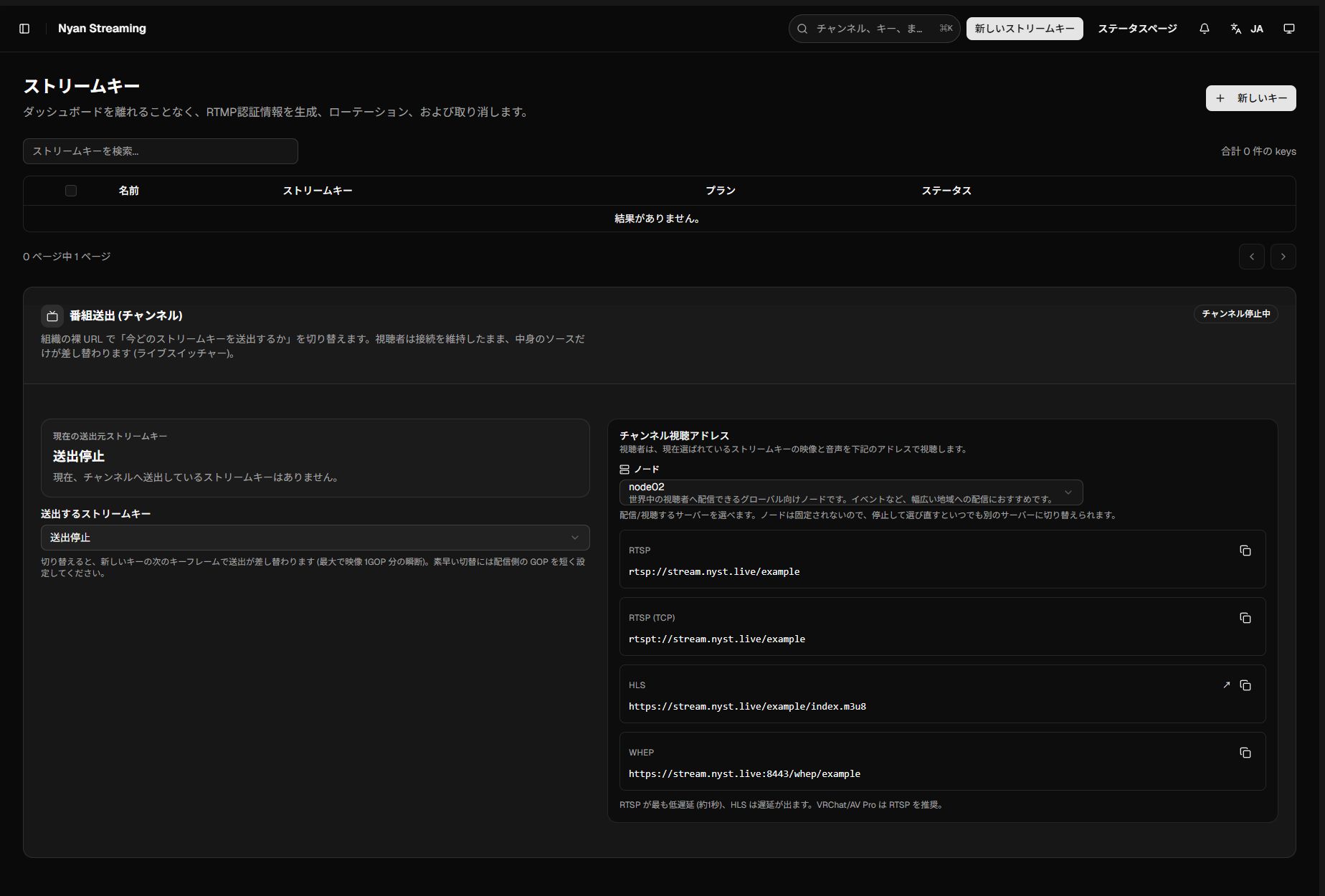
Create a Key
Section titled “Create a Key”- Open Stream Keys from the left sidebar.
- Select New Key, then choose a name and plan.
- Optionally set a view key, node, region, and notes.
- Open the new key to check its ingest and playback URLs.
If the view key is blank, one is generated randomly. Custom view keys may contain letters, numbers, hyphens (-), and underscores (_). The ingest secret is always random.
If you are unsure which node to use, see Choosing a Node. Select the standard Node02 when you have no special requirements.
Ingest and Playback Addresses
Section titled “Ingest and Playback Addresses”The key Overview shows these addresses for the selected node:
| Purpose | Available information |
|---|---|
| Ingest | RTMP, WebRTC (WHIP), RTSP ingest URL, and ingest path |
| Playback | RTSP, RTSPT (TCP), WebRTC (WHEP), HLS, and RTMP playback URLs |
| Limits | Organization-wide bitrate/viewer limits, recording, restreaming, storage, and region restrictions |
Selecting a node in the dashboard does not pin the key to that node. The URL configured in OBS or your player determines the actual connection target.
Key Detail Tabs
Section titled “Key Detail Tabs”| Tab | What it does |
|---|---|
| Overview | Ingest/playback URLs, plan, limits, and available features |
| Browser Streaming | Publish a camera, microphone, or screen with WebRTC (WHIP) |
| Browser Viewing | Low-latency playback with WebRTC (WHEP) |
| HLS Viewing | Preview the .m3u8 stream in the dashboard |
| Statistics | Live totals and per-node statistics |
| Recordings | Enable automatic recording on Node02 and manage this key’s recordings |
| Restreaming | Manage external RTMP destinations such as YouTube or Twitch |
| Equalizer | Configure EQ and reverb |
EQ presets are Flat / Voice / Music / Bass Boost / Treble Boost. Reverb presets are Studio / Room / Hall / Cathedral. Changes normally reach viewers within about three seconds.
Channel Output
Section titled “Channel Output”On Pro and higher plans, select which stream key is sent through the organization’s shared playback URL. Viewers stay connected while the underlying source changes.
- Select a key or choose Stop Output.
- The change occurs on the new key’s next keyframe and may interrupt playback for up to one GOP.
- Use matching resolution, frame rate, codecs, and audio settings before and after the switch.
When a Key Is Suspended
Section titled “When a Key Is Suspended”For bitrate overages, 24-hour continuous streaming, or a terms violation, the key list shows the status and scheduled release time when applicable. See Troubleshooting for the warning screens and recovery steps.