
Troubleshooting
Troubleshooting
Section titled “Troubleshooting”First, open the stream-key list and key details in the dashboard. Check the key status, input bitrate, selected node and region, and any restriction banner.
Start with the Symptom
Section titled “Start with the Symptom”| Symptom | Check first |
|---|---|
| Publishing does not start | RTMP URL and publish secret, node health, and any restriction banner on the key |
| No video | Confirm that the video codec is H.264 (AVC) |
| No audio | Confirm that the audio codec is AAC or PCM (s16be). PCM ingest requires RTSP; non-RTSP playback uses AAC |
| RTSP publishing does not start | Check whether your provider restricts port 554 or RTSP traffic |
| HLS does not play in a browser | Confirm that the URL ends in .m3u8; outside Safari, use an hls.js-compatible player |
| Playback fails in VRChat | Use an AVPro-compatible player and an RTSP / RTSPT URL, with Stream Mode / Low Latency enabled |
| VRChat Public playback fails | Check the world domain allowlist and Allow Untrusted URLs |
| Latency is too high | Use RTSP or WebRTC (WHEP) instead of HLS when possible |
| The stream stopped unexpectedly | Check notifications and restriction banners for bitrate, 24-hour continuous streaming, or a terms violation |
Only RTSP Publishing Fails
Section titled “Only RTSP Publishing Fails”Some internet service providers (ISPs) restrict port 554 or RTSP traffic. If RTMP and WebRTC work on the same connection but RTSP alone cannot connect, the provider’s network restriction is the cause; it is not a Nyan Streaming outage.
Ask your provider whether RTSP traffic is permitted or try another connection. If RTSP is unavailable, change the audio codec to AAC and publish over RTMP or WebRTC.
A Restriction Screen Appeared
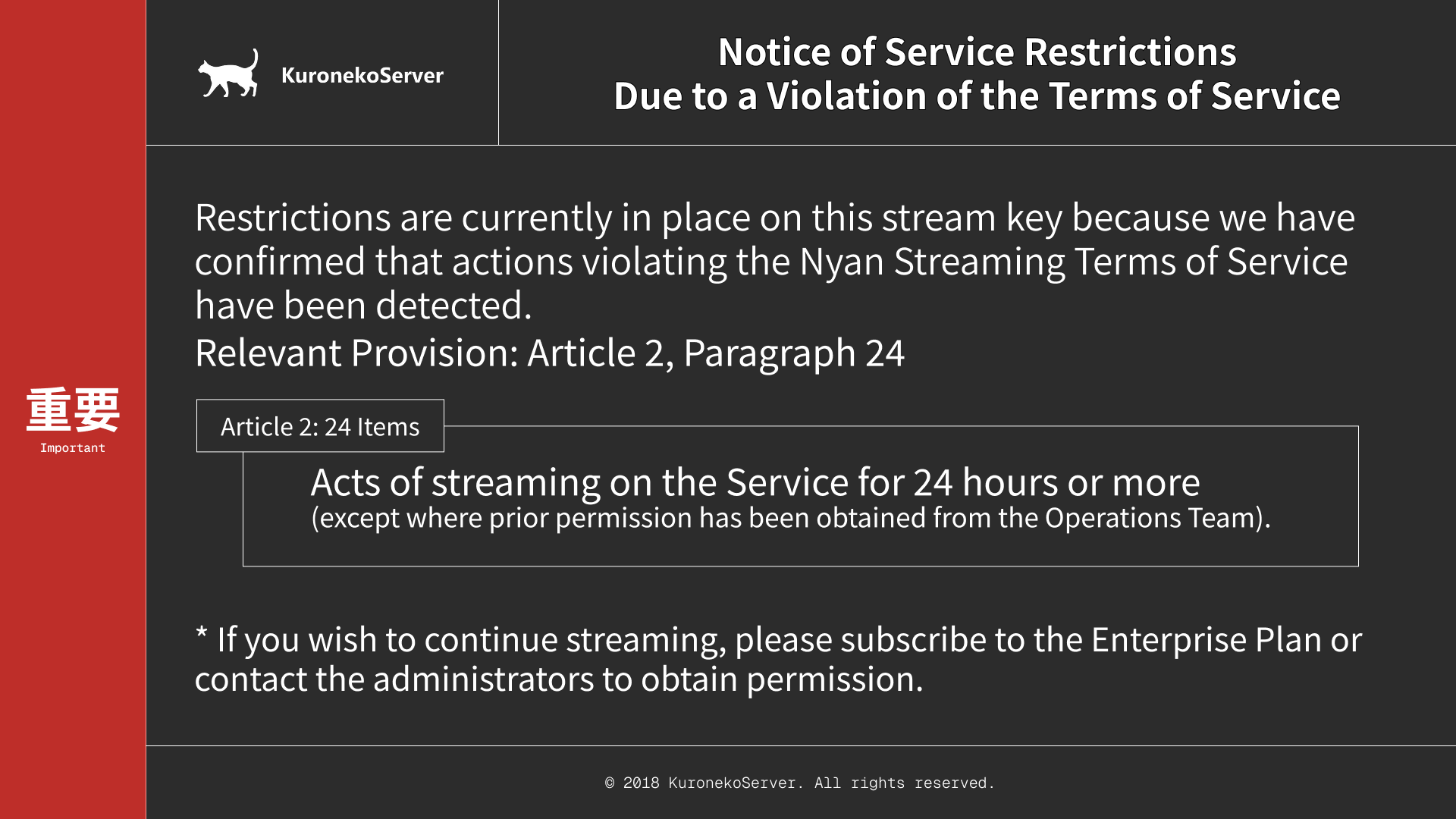
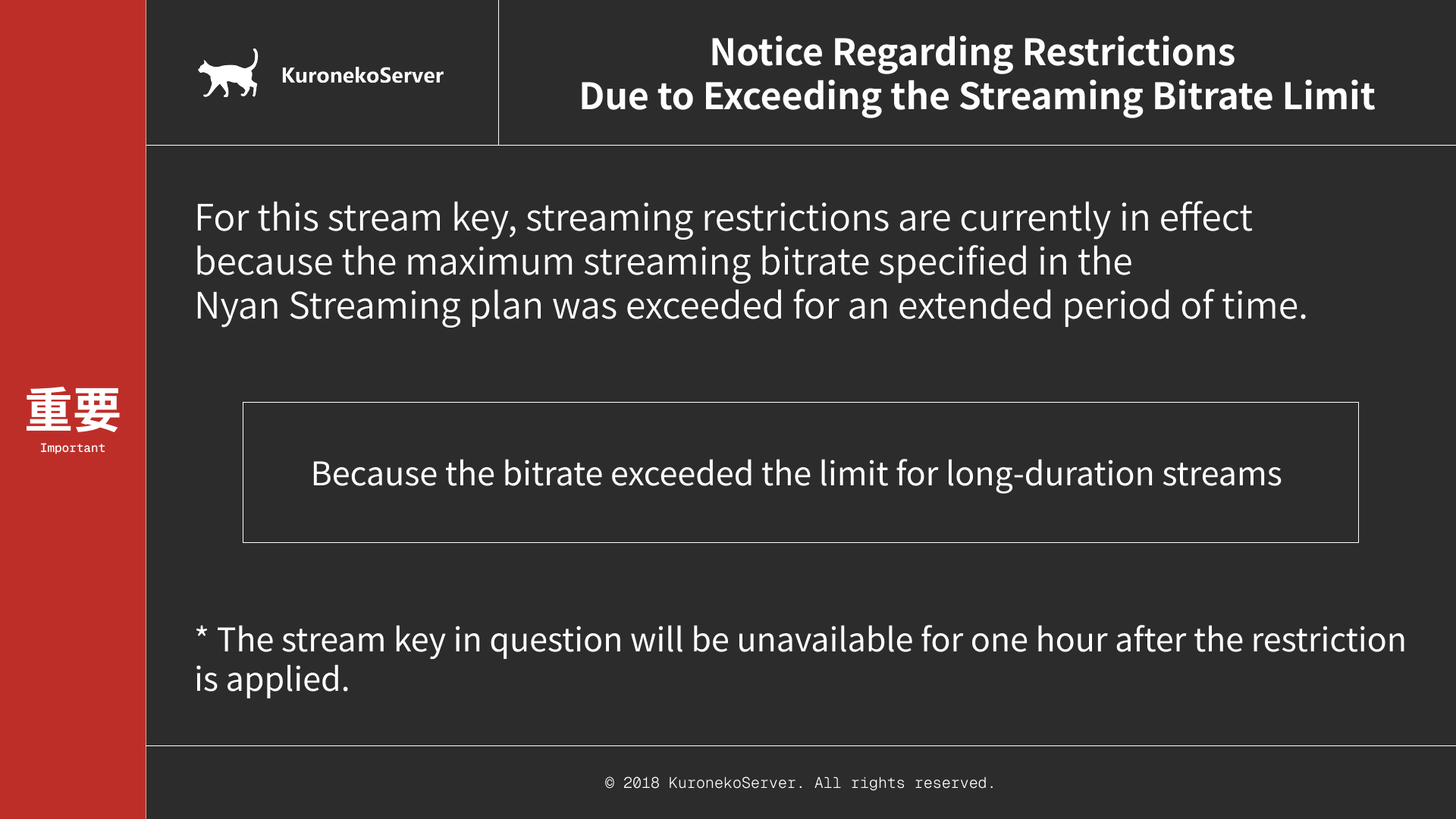
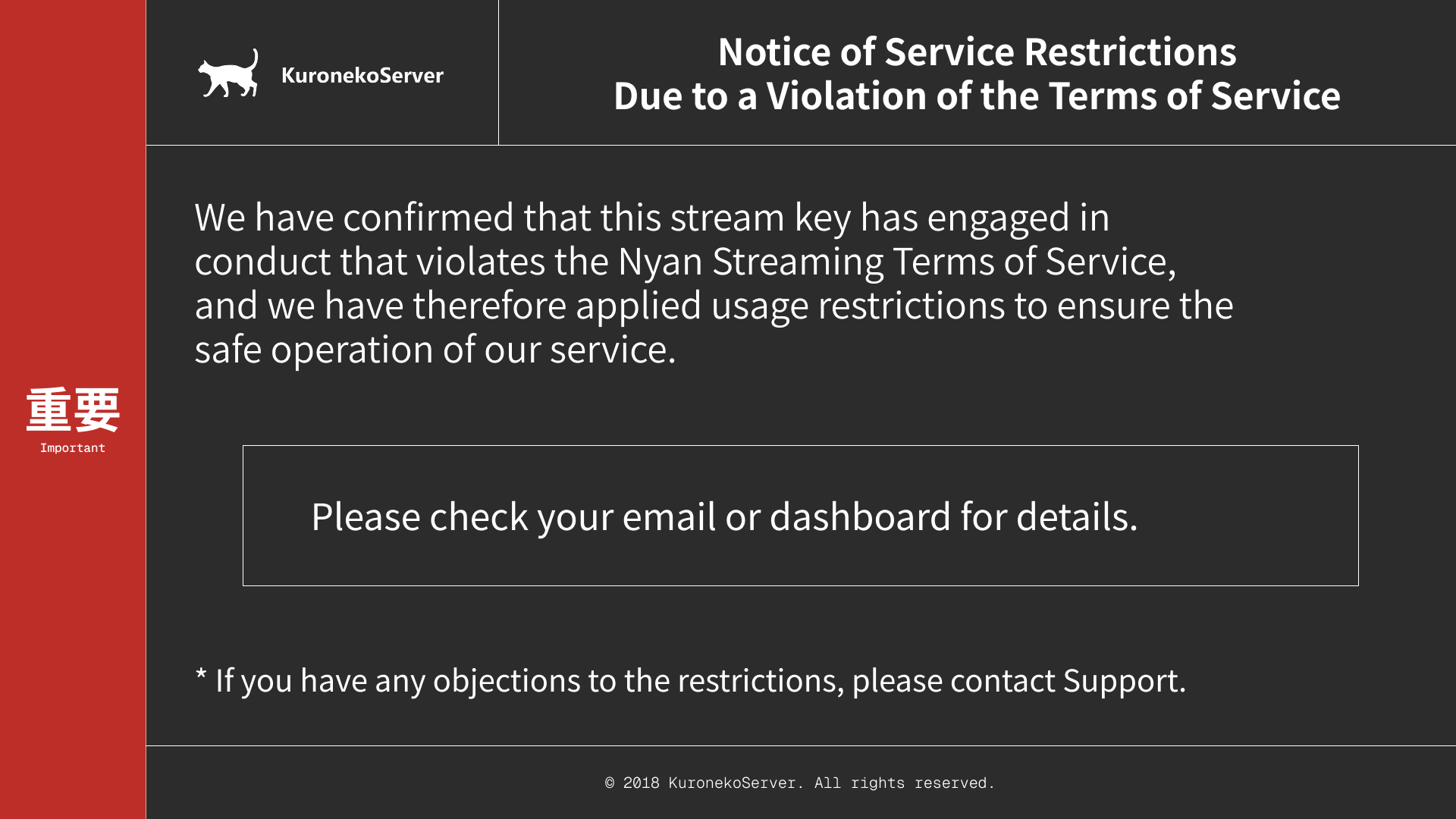
Section titled “A Restriction Screen Appeared”When publishing is stopped for bitrate, 24-hour continuous streaming, or a terms-of-service violation, viewers see a reason-specific warning screen in place of the normal stream. The key list in the dashboard shows the reason, and automatic restrictions also show their scheduled lift time.
More Than 24 Hours of Continuous Streaming
Section titled “More Than 24 Hours of Continuous Streaming”This restriction applies when one publish session runs continuously for 24 hours on a node where the duration limit is enabled. The stream is stopped and every stream key in the organization is blocked for one day. Reconnecting starts a new continuous-session timer. Node03 is exempt from this restriction.
What to do
- Check the scheduled lift time in the dashboard.
- Publishing cannot resume until the restriction lifts.
- Start a new publishing session after it lifts.
- Use Node03 for low-bitrate continuous streaming beyond 24 hours. Contact us in advance when the required operating conditions do not fit Node03.
Input Bitrate Limit Exceeded
Section titled “Input Bitrate Limit Exceeded”This restriction applies when the combined input bitrate of every simultaneous stream in the organization stays above the plan limit for more than 10 minutes. The newest streams are stopped until the total falls within the limit, and affected keys cannot publish again for one hour.
What to do
- Add up the video and audio bitrates from every encoder publishing at the same time.
- Lower the bitrate of each stream or stop unnecessary streams until the organization total is within the limit.
- Check the affected keys’ scheduled lift time in the dashboard.
- Reconnect after the restriction lifts. Request a plan change or additional bitrate if you need a higher limit.
Other Terms-of-Service Violations
Section titled “Other Terms-of-Service Violations”When an administrator confirms a terms-of-service violation, publishing by the affected organization or user is stopped and blocked. This restriction does not have an automatic lift time.
What to do
- Review the Nyan Streaming Terms of Service and the clause shown in the notification.
- Stop or correct the relevant content.
- Contact us to request a review or removal of the block.
Other Limits
Section titled “Other Limits”Concurrent Viewers
Section titled “Concurrent Viewers”When the organization’s concurrent viewer count reaches the plan limit, new viewer connections are rejected. Current viewers remain connected. Free capacity or change the plan / viewer add-on to accept more viewers.
Storage Capacity
Section titled “Storage Capacity”Recording stops automatically when the organization reaches its storage quota. Publishing continues, and footage up to the stop point is uploaded. Delete unneeded archives or media, or add storage capacity.
Regional Restrictions
Section titled “Regional Restrictions”Nodes or plans limited to Japan cannot be viewed from outside the permitted region. Check the stream key’s plan, selected node, and region.
Information to Include When Contacting Support
Section titled “Information to Include When Contacting Support”- Organization name and stream-key display name; never send the publish secret
- Time of the issue and time zone
- Node / region and protocol used (RTMP / RTSP / HLS / WebRTC)
- Error or restriction reason shown in the dashboard
- If attaching OBS statistics or logs, remove publish secrets and personal information first