
Archives
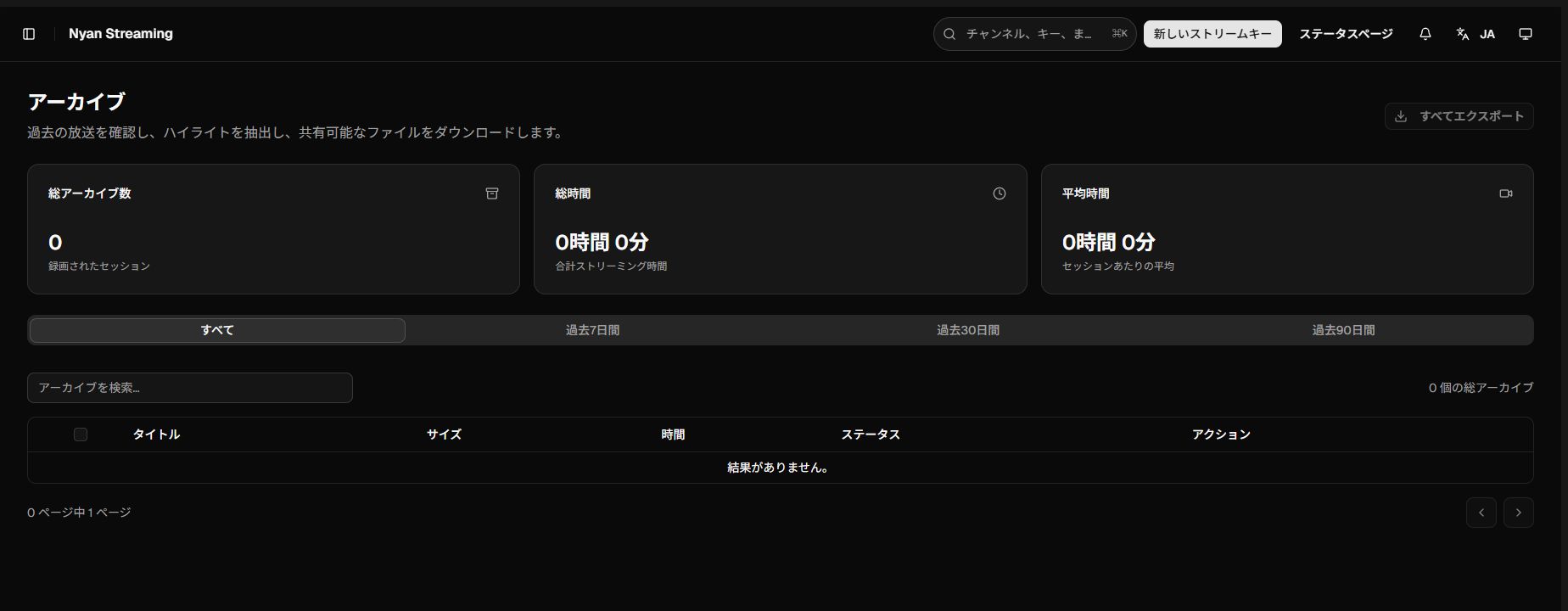
Archives lists past broadcasts recorded from your stream keys for the current organization.
Recording-compatible node
Section titled “Recording-compatible node”Create a recording
Section titled “Create a recording”- Open the target key from Stream Keys.
- Enable automatic recording on its Recordings tab.
- Start streaming.
- After the stream ends and processing finishes, the recording appears in Archives.
Recording availability, pooled organization storage, and retention depend on the plan. See Plans, Limits, and Policies and Choosing a Node.
Summary cards
Section titled “Summary cards”| Item | Meaning |
|---|---|
| Total archives | Number of recorded sessions |
| Total duration | Combined duration of all recordings |
| Total viewers | Accumulated average-viewer count across sessions |
| Average duration | Average recording duration per session |
Filter by All / Last 7 days / Last 30 days / Last 90 days, or search by title.
Recording actions
Section titled “Recording actions”The row menu can open a recording in a new tab, download it, copy its direct link, rename it, or delete it. Select multiple rows for bulk download or deletion. Export all exports the complete list.
Renaming changes the display name and downloaded filename, but it does not change the direct URL.
If a recording is missing
Section titled “If a recording is missing”- Confirm that recording was enabled on the stream key before publishing.
- Confirm that the stream was published to Node02. Streams on Node01 and Node03 are not recorded.
- Immediately after a stream ends, wait while its status is Processing or Pending.
- Check pooled storage on Media for a full quota.
- Confirm that the correct team is selected in the top-left team switcher.